
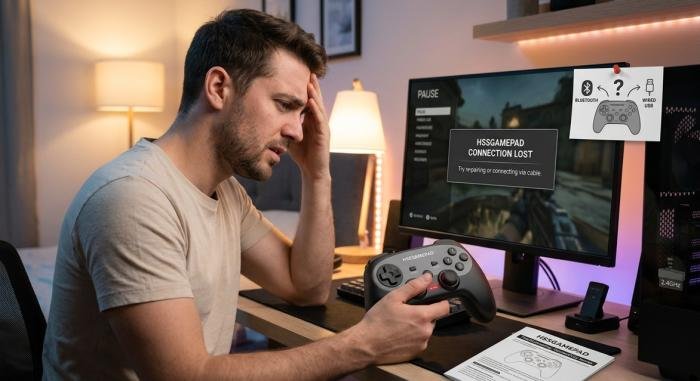
Connectivity Issues HSSGamepad: Causes, Common Problems and Easy Fixes
Gaming is more enjoyable when your controller connects smoothly and responds without delays. However, technical problems can sometimes interrupt gameplay and create frustration for players. One common concern is connectivity issues hssgamepad, which may prevent a controller from pairing with a gaming device or maintaining a stable connection. These problems can occur because of Bluetooth interruptions, low battery power, outdated software, or incorrect connection settings.
Understanding why these connection problems happen can help users find the right solutions without wasting time. Fortunately, most common controller connectivity problems can be addressed through simple troubleshooting methods. In this article, we will discuss the major causes, common connection problems, and easy fixes to help improve HSSGamepad performance and provide a smoother gaming experience.
What Are Connectivity Issues HSSGamepad?
Connectivity issues hssgamepad refer to problems that occur when an HSSGamepad controller cannot establish or maintain a stable connection with a compatible gaming device. These problems may affect wireless connections, Bluetooth pairing, USB connections, or communication between the controller and the gaming platform. A controller normally communicates with a gaming device through a supported connection method.
When something interrupts that communication, the controller may stop responding, experience input delays, or disconnect completely. For example, a player might press a button, but the game does not respond immediately. Another player may find that the controller connects successfully but loses its connection after a few minutes. These situations can make gaming frustrating, especially during competitive matches or important gameplay moments.
Read More: Magfusehub com: Website Features, Helpful Resources and Latest Updates
Common Causes of HSSGamepad Connection Problems
Identifying the reason behind a connection problem is the first step toward fixing it. Several technical and environmental factors can affect controller connectivity.
1. Weak Bluetooth Connection
Bluetooth is a popular wireless connection method for gaming controllers. However, wireless signals can become unstable when the controller is too far away from the connected device.
Physical obstacles, nearby electronic devices, and wireless interference can also affect signal quality. When the Bluetooth connection becomes weak, users may experience delayed button responses, random disconnections, or difficulty pairing the controller.
2. Low Battery Level
A low battery is another common reason for controller connection problems. Wireless controllers require sufficient power to maintain stable communication with connected devices.
When the battery becomes weak, the controller may disconnect unexpectedly or fail to complete the pairing process. Some controllers may also display unusual indicator-light behavior when their battery level becomes too low.
3. Outdated Firmware or Software
Controllers and gaming devices may depend on software or firmware to communicate correctly. Outdated software can sometimes create compatibility problems or connection errors.
If the gaming device has recently received an operating system update, an older controller firmware version might not work as expected. Keeping supported software updated can help prevent certain connectivity issues hssgamepad.
4. Incorrect Pairing Settings
Sometimes, the controller is working properly, but the pairing process has not been completed correctly. For example, users might attempt to connect the controller while it is still paired with another device.
Incorrect Bluetooth settings can also prevent successful connections. Checking the pairing settings and following the manufacturer’s instructions can help resolve this problem.
5. Wireless Interference
Wireless interference can occur when several electronic devices operate close to one another. Wi-Fi routers, Bluetooth accessories, wireless headphones, and other connected devices may contribute to signal congestion.
Although interference does not always cause connection failures, it can reduce wireless stability and create interruptions during gameplay.
Common HSSGamepad Connectivity Problems and Their Possible Solutions
| Common Problem | Possible Cause | Recommended Solution |
| Controller not connecting | Incorrect pairing | Remove and reconnect the controller |
| Frequent disconnections | Weak Bluetooth signal | Move closer to the device |
| Controller not responding | Low battery | Charge the controller |
| Input delay | Wireless interference | Reduce nearby wireless interference |
| Device not recognizing controller | Compatibility issue | Check device compatibility |
| USB connection failure | Damaged cable or port | Test another compatible cable |
| Pairing unsuccessful | Previous connection conflict | Disconnect other paired devices |
Easy Fixes for Connectivity Issues HSSGamepad
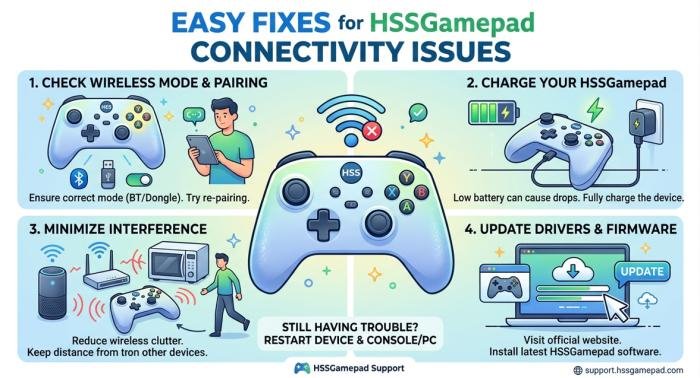
Once users identify the possible cause, they can try several practical troubleshooting methods. The following solutions are simple and suitable for common controller connection problems.
Restart Your Controller
Restarting the controller is one of the easiest troubleshooting methods. Sometimes, temporary software glitches prevent a controller from communicating properly with a gaming device. Turn off the controller completely and wait approximately 10–15 seconds. After that, turn it back on and attempt to reconnect it.
If the controller has a dedicated reset button or reset combination, consult its official instructions before using it. Restarting can refresh the controller’s connection and resolve temporary communication problems.
Restart Your Gaming Device
The problem does not always originate from the controller. Sometimes, the gaming device itself experiences temporary Bluetooth or USB communication errors. Restarting the connected device can refresh its system services and remove temporary glitches. Follow these steps:
- Save your current game progress.
- Close the game or application.
- Turn off the gaming device.
- Wait approximately 20–30 seconds.
- Turn the device back on.
- Try connecting the controller again.
Charge the Controller Fully
If the controller uses a rechargeable battery, make sure it has enough power before attempting another connection. Connect it to a compatible charging source and allow it to charge according to the manufacturer’s instructions.
Avoid assuming that the controller is fully charged simply because its indicator light turns on. After charging, disconnect the cable if you want to use wireless mode and check whether the connection remains stable.
Remove and Reconnect the Bluetooth Device
A corrupted or incomplete Bluetooth pairing can prevent the controller from connecting properly. Removing the existing pairing and creating a new connection may solve the problem. Follow these steps:
- Open the Bluetooth settings on your gaming device.
- Find the controller in the paired-device list.
- Select the option to remove or forget the device.
- Turn off the controller.
- Activate its pairing mode according to the manufacturer’s instructions.
- Search for available Bluetooth devices.
- Select the controller and complete the pairing process.
Reduce Wireless Interference
Wireless interference can affect Bluetooth communication, especially when several devices operate in the same area. Try keeping the controller and gaming device closer together. Move unnecessary wireless accessories away from the gaming setup and avoid placing the gaming device behind thick walls or metal objects.
If a wireless router is positioned directly beside the gaming device, moving it slightly farther away may also help. These small adjustments can improve connection stability and reduce unexpected interruptions.
Check USB Cable and Port Connections
For controllers that support wired connections, checking the USB cable is another important troubleshooting step. A damaged cable may provide insufficient power or fail to transfer data correctly. Try the following:
- Inspect the cable for visible damage.
- Check whether the connector fits securely.
- Test another compatible data-transfer cable.
- Try a different USB port.
- Remove dust or debris from the port carefully.
How to Prevent Future HSSGamepad Connection Problems
Fixing a connection problem is useful, but preventing it from happening again is even better. A few simple maintenance habits can help keep your controller working reliably.
Keep Your Controller Charged: Do not regularly allow the battery to become completely depleted. Charge the controller when necessary and use a compatible charging accessory. Maintaining sufficient battery power can reduce unexpected shutdowns and wireless interruptions.
Maintain a Clean Gaming Setup: Dust, dirt, and debris can affect physical connection ports over time. Keep the controller, USB connectors, and gaming device clean. Use appropriate cleaning methods and avoid applying liquids directly to electronic components.
Avoid Excessive Wireless Interference: Keep unnecessary wireless accessories away from your gaming setup when possible. A clean wireless environment can help improve signal stability, especially when using Bluetooth controllers.
Check Updates Regularly: Check for official software and firmware updates when necessary. Updated software can improve compatibility and address known technical problems. However, only install updates provided by trusted manufacturers or official platforms.
Store Your Controller Properly: Protect your controller from moisture, extreme temperatures, and accidental physical damage. Proper storage can help preserve its internal components, battery, buttons, and connection ports.
When Should You Seek Professional Help?
Most basic connection problems can be addressed with simple troubleshooting. However, some situations require additional technical assistance. Consider contacting the manufacturer or a qualified technician if:
- The controller cannot connect to any compatible device.
- The USB connection fails with multiple working cables.
- Bluetooth pairing does not work after repeated attempts.
- The controller repeatedly shuts down despite having sufficient battery power.
- The connection ports appear damaged.
- The controller has suffered physical or liquid damage.
If the device is still covered by a warranty, check the manufacturer’s support policy before attempting hardware repairs. Avoid opening the controller unnecessarily because doing so may damage internal components or affect warranty coverage.
Why Stable Controller Connectivity Matters for Gaming
A stable controller connection is important because it directly affects how players interact with their games. When a controller responds correctly, players can perform actions without unnecessary delays. This is especially important in racing games, fighting games, sports games, and competitive multiplayer titles. On the other hand, unstable connections can create input delays, unexpected pauses, and missed commands.
Resolving connectivity issues hssgamepad can therefore improve the overall gaming experience by making controller input more consistent. It is also important to remember that not every gameplay delay is caused by the controller. Internet latency, game performance, device limitations, and server problems can create similar symptoms. Identifying whether the issue comes from the controller or another part of the gaming system helps avoid unnecessary troubleshooting.
Lastly, Wrapping Up
Controller connection problems can make gaming frustrating, especially when the controller suddenly stops responding or disconnects during gameplay. However, identifying the cause is the first step toward finding an effective solution. Checking the battery, restarting devices, reconnecting Bluetooth, updating software, and using compatible cables can help resolve many common problems.
By following these troubleshooting methods and maintaining your controller properly, you can reduce recurring connectivity issues hssgamepad and enjoy more reliable gameplay. If the problem continues despite trying these solutions, contacting the manufacturer or a qualified technician is a sensible option. Regular maintenance and correct connection settings can help keep your gaming experience smooth and enjoyable.
Frequently Asked Questions
Q1. Why is my HSSGamepad not connecting to my device?
Ans: Your HSSGamepad may not connect because of low battery power, incorrect Bluetooth pairing, incompatible device settings, or temporary software problems. Restarting both devices and reconnecting the controller may help.
Q2. How can I fix connectivity issues hssgamepad quickly?
Ans: Start by restarting the controller and gaming device. Check the battery level, remove the existing Bluetooth pairing, and reconnect the controller. These basic steps can resolve many temporary connection problems.
Q3. Can a low battery cause HSSGamepad connection problems?
Ans: Yes. A low battery can affect wireless communication and may cause unexpected disconnections. Charging the controller fully before reconnecting it is a useful troubleshooting step.
Q4. Why does my HSSGamepad keep disconnecting?
Ans: Frequent disconnections may result from weak Bluetooth signals, wireless interference, low battery power, outdated firmware, or hardware problems. Check these factors to identify the possible cause.
Q5. Does updating software fix HSSGamepad connectivity problems?
Ans: Software updates can sometimes resolve connection errors by improving compatibility and fixing bugs. However, updates will not necessarily solve problems caused by damaged hardware or unsupported devices.
Q6. Can I use HSSGamepad with a USB cable?
Ans: That depends on the controller model and its supported connection methods. If wired connectivity is supported, use a compatible USB data cable and check whether your gaming device recognizes the controller.



One Comment