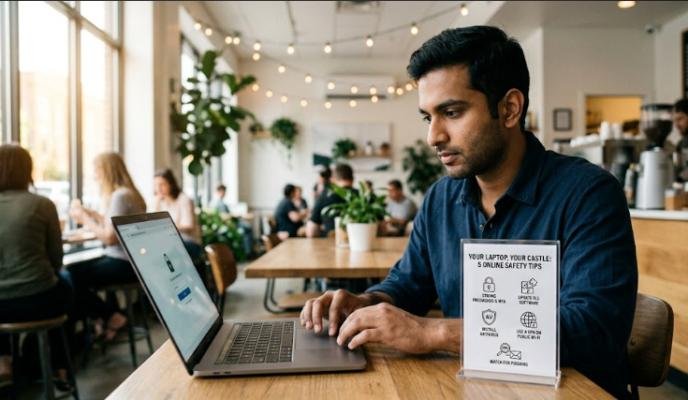
Online Safety Tips for Safer Browsing & Online Privacy
Good online safety tips are not about avoiding the internet or becoming a cybersecurity expert. They are about building practical habits that make it harder for criminals, scammers, and malicious software to access your accounts or personal information.
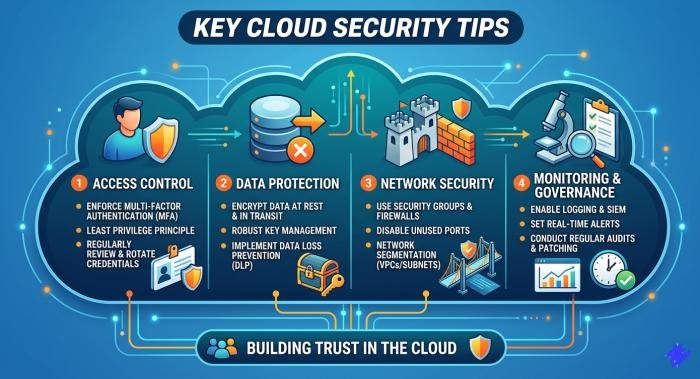
The U.S. Cybersecurity and Infrastructure Security Agency (CISA) highlights four foundational habits for everyday users: recognizing and reporting phishing, using strong passwords, enabling multifactor authentication (MFA), and keeping software updated. The Federal Trade Commission (FTC) similarly recommends protecting accounts, updating devices, securing home Wi-Fi, locking devices, and maintaining backups.
Privacy is another important part of staying safe online. Even when an account has not been hacked, unnecessary sharing of personal information can increase exposure to scams, unwanted tracking, impersonation, and other risks. The safest approach is therefore layered: secure your accounts, devices, connections, and personal information while developing the habit of thinking before clicking or sharing.
Read More: Funny Shooter 2 Unblocked – Play Online Free in Your Browser
What Are Online Safety Tips and Why Do They Matter?
Online safety refers to the practices used to protect your digital accounts, devices, information, and activities from unauthorized access, fraud, scams, malware, and other online threats.Online safety and online privacy overlap, but they are not identical. Security focuses largely on preventing unauthorized access or misuse. Privacy concerns how personal information is collected, shared, stored, and exposed.
For example, using MFA helps secure an account against unauthorized login. Limiting the amount of personal information visible on a public social media profile is primarily a privacy practice. Using both approaches provides stronger overall protection.
The FTC warns that personal information stored on computers, phones, and online accounts has value to scammers and hackers. Its guidance recommends keeping software current, securing home Wi-Fi, protecting accounts with strong passwords and two-factor authentication, and taking precautions against attempts to steal information.
What Can Happen When Basic Online Security Is Ignored?
Poor security habits can contribute to several problems, including:
- Stolen account credentials
- Account takeover
- Phishing and impersonation scams
- Financial fraud
- Identity theft
- Malware infections
- Loss of personal files
- Unauthorized access to private information
- Exposure of information through compromised accounts or devices
Not every online incident happens because a person made a mistake. Services can suffer data breaches, vulnerabilities can exist in software, and sophisticated attacks can bypass individual precautions. Good habits cannot eliminate every risk, but they can reduce many common opportunities for attackers.
Online Safety Tips for Everyday Internet Use
1. Use Strong, Unique Passwords for Every Account
Passwords remain common, but they should not be treated as your only line of defense.One of the most important password habits is never reusing an important password across multiple accounts. If one service suffers a breach and a reused password becomes available to criminals, that same password may be tried against your email, shopping, social media, or other accounts.
NIST’s current digital identity guidance requires passwords used as a single authentication factor to be at least 15 characters and does not recommend imposing arbitrary composition rules such as mandatory mixtures of uppercase letters, numbers, and symbols. NIST emphasizes length and protection against commonly used or compromised passwords.
A password manager can make this approach much easier by generating and storing different passwords for different services.For important accounts, consider a passkey when the service supports one. NIST explains that passkeys use cryptographic credentials associated with a device and are designed to resist common phishing-based password theft.
How Long Should a Secure Password Be?
For a password that is used as a single authentication factor, current NIST guidance specifies a minimum of 15 characters. However, length alone does not make an account invulnerable. A password can still be exposed through phishing, malware, a breach, or accidental disclosure.A long, unique passphrase is generally easier to remember than a short collection of complicated characters.
2. Turn On Multifactor Authentication
Multifactor authentication requires more than one factor to verify your identity. Depending on the service, this might involve a password plus an authenticator-app approval, security key, biometric method, or another authentication factor.
MFA provides an additional barrier when a password has been compromised. CISA specifically recommends turning on MFA, and NIST describes MFA as an important way to strengthen account authentication.Prioritize MFA for:
- Email accounts
- Banking and financial accounts
- Cloud storage
- Social media
- Shopping accounts
- Work accounts
- Password managers
When several MFA options are available, stronger phishing-resistant methods can provide advantages over methods that rely only on codes sent by text.
3. Recognize Phishing Messages
Phishing is one of the most important threats to understand because it often targets people rather than software vulnerabilities.A phishing message may pretend to come from a bank, delivery company, employer, government agency, social network, friend, or another trusted organization. The goal may be to persuade you to click a malicious link, open an attachment, reveal a password, provide financial information, or approve an unexpected login.
CISA identifies recognizing and reporting phishing as one of its four core everyday cybersecurity practices. NIST also identifies phishing as a common way attackers obtain passwords by tricking users into entering credentials on fraudulent websites.
Common Phishing Warning Signs
Be cautious when a message:
- Creates unusual urgency
- Threatens immediate account closure
- Requests sensitive information unexpectedly
- Contains an unfamiliar or suspicious link
- Includes an unexpected attachment
- Asks for payment through an unusual method
- Claims there is an emergency involving a friend or family member
- Directs you to a login page you were not expecting
A polished message can still be fraudulent. Instead of deciding based only on spelling or appearance, verify the request through a separate channel.
What Should You Do With a Suspicious Message?
Do not click the link simply to investigate it. If the message claims to come from a company, open the company’s official website or app independently and check your account there.If you believe a message is fraudulent, report it using the appropriate reporting mechanism and then remove it.
4. Check Websites Before Entering Personal Information
A website can look professional and still be fraudulent.Before entering a password, payment information, or other sensitive data, check the website address carefully. Watch for misspellings, unexpected domains, suspicious redirects, or addresses that do not match the organization you intended to visit.
HTTPS is useful because it encrypts information sent between your browser and the website. However, HTTPS does not prove that the website itself is legitimate. The FTC specifically warns that scammers can operate encrypted websites, so a secure connection should not be confused with a trustworthy website.
If you receive an unexpected account alert, avoid following the link in the message. Instead, access the service directly through its official website or application.
5. Keep Your Operating System, Browser, and Apps Updated
Software updates are not merely about new features. They can include security fixes that address vulnerabilities.CISA advises users to update software for safety, noting that flaws in software can provide criminals with opportunities to gain access to files or accounts. The FTC likewise recommends updating security software, operating systems, browsers, and mobile apps and enabling automatic updates when appropriate.Keep these updated:
- Computer operating system
- Smartphone operating system
- Web browser
- Mobile applications
- Security software
- Router firmware
- Internet-connected devices
6. Protect Your Home Wi-Fi Network
Your router connects many devices to the internet, so protecting it can improve the security of your entire home network.The FTC recommends using WPA3 Personal or WPA2 Personal encryption, changing default router administrative credentials and Wi-Fi passwords, keeping router software updated, and using a guest network when appropriate. Older security options such as WEP are outdated.Change both:
- The Wi-Fi network password used by your devices.
- The router administrator password used to manage the network.
Do not use easily associated information such as your name, address, or router brand.A guest network can also keep visitors’ devices separate from your primary network, reducing the exposure of your main devices.
7. Use Public Wi-Fi Carefully
Public Wi-Fi is common in airports, hotels, cafés, libraries, and other public locations. Modern web encryption has made public Wi-Fi considerably safer than it was in the early days of the internet. The FTC says that connecting through public Wi-Fi is usually safe because most websites now use encryption.That does not mean every network or website is trustworthy.When using public Wi-Fi:
- Confirm the network name when possible.
- Avoid connecting automatically to unknown networks.
- Keep your device and browser updated.
- Check that sensitive websites use HTTPS.
- Avoid entering sensitive information into suspicious websites.
- Be cautious of fake networks designed to resemble legitimate hotspots.
Remember that an encrypted connection to a fraudulent website does not protect you from the person operating that website.
8. Limit the Personal Information You Share Online
Privacy begins with deciding what not to share.Information such as your full name, phone number, home address, date of birth, workplace, travel plans, family details, and financial information can provide useful material to scammers or impersonators.
Before posting something publicly, ask whether the information is necessary and whether you would be comfortable with an unknown person seeing it.Avoid posting information that could help someone answer security questions, impersonate you, or construct a convincing scam.
9. Review Privacy Settings on Social Media and Apps
Privacy settings can help you control who can see information and which applications can access certain device features.Review:
- Profile visibility
- Location sharing
- Contact access
- Camera permissions
- Microphone permissions
- Photo and file access
- Connected third-party applications
- Advertising and tracking preferences
Do not assume that an application needs every permission it requests. If a permission is unnecessary for the application’s function, consider whether access should be denied.The FTC provides consumer guidance on how websites and apps collect and use information and recommends taking steps to protect personal information and connected devices.
10. Download Apps and Files From Trusted Sources
Malicious software can be disguised as useful software, documents, browser extensions, or mobile applications.Prefer official app stores and the legitimate website of the software publisher. Before installing something, check the publisher, requested permissions, reviews, and whether the download is expected.Be particularly careful with:
- Pirated software
- Unofficial software activators
- Unexpected email attachments
- Suspicious browser extensions
- Unknown applications
- Files received from unfamiliar contacts
11. Secure Your Phone and Computer When You’re Away
Physical access can create security problems even when your online accounts are well protected.Use a screen lock with a strong PIN, password, or supported biometric authentication. Configure your device to lock automatically after a reasonable period of inactivity.
The FTC recommends setting computers and phones to lock when they are not being used. This can help prevent unauthorized access if you step away from a device or lose it.Also consider enabling device-location and remote-wipe features where supported.
12. Back Up Important Data
Backups are an important part of recovery.If a device is lost, stolen, damaged, infected, or compromised, a backup can help you recover important files. The FTC recommends keeping backup copies of important information using cloud storage or an external drive.Back up information such as:
- Important documents
- Family photographs
- Work files
- Financial records
- Contact information
- Other irreplaceable personal data
13. Be Careful When Shopping and Banking Online
Financial transactions deserve extra caution.Before buying something, verify that you are using the legitimate website or application. Avoid making financial decisions because a message claims that you must act immediately.For financial and payment accounts:
- Enable MFA where available.
- Use a unique password.
- Monitor account activity.
- Turn on security notifications if offered.
- Never share authentication codes with unsolicited callers or messages.
- Contact your bank through an official channel if something appears suspicious.
14. Treat QR Codes, Links, and Unexpected Prompts With Caution
QR codes are convenient, but scanning one can take you to a website just as clicking a link can.Before entering credentials after scanning a QR code, check the destination address. Do not assume a QR code is trustworthy simply because it appears on a poster, package, email, or message.
The same principle applies to unexpected login prompts. If your device suddenly asks you to approve a login you did not initiate, do not automatically approve it. Investigate the notification through the relevant service.
15. Know What to Do If You Think You’ve Been Hacked or Scammed
Quick action can limit further damage.If you suspect an account has been compromised:
- Stop interacting with the suspicious message or website.
- Change the affected password using a trusted device.
- Change any other account password that was reused.
- Enable MFA.
- Review recent account activity.
- Sign out of unfamiliar sessions if the service provides that option.
- Contact your bank or financial provider if payment information is involved.
- Update the affected device and check it for malicious software.
- Report the incident to the appropriate organization.
- Preserve relevant messages, transaction records, and other evidence.
Online Safety Tips for Safer Browsing
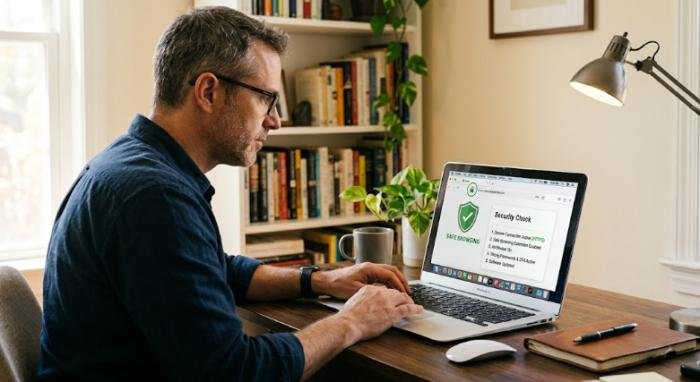
Safer browsing begins before you enter information into a website.
Before Visiting a Website: Check where the link came from. An unexpected message that directs you to a login page deserves extra scrutiny.If you need to visit a service, consider typing the known website address yourself or using an official bookmark rather than following an unexpected link.
While Browsing: Use a current browser and pay attention to security warnings. Do not ignore warnings simply because you are in a hurry.Before submitting sensitive information, check the website address and look for HTTPS. But remember that HTTPS protects the connection; it does not establish that the organization behind the website is legitimate.
Before Downloading Anything: Confirm that the download is expected and comes from a trustworthy source. Avoid software that requires disabling security protections or comes from unofficial distribution channels.
Online Safety Tips for Better Privacy
Security tools are important, but privacy also depends on how much information you voluntarily provide.
Share Less Personal Information: Ask whether a website or application genuinely needs each piece of information it requests. Providing less unnecessary information can reduce the amount of data exposed if an account is compromised.
Review App Permissions: A flashlight application, for example, may not need access to your contacts or location. Review permissions regularly and remove access that is unnecessary.
Review Account Privacy Settings: Privacy settings can change as services introduce new features. Check them periodically rather than configuring them once and forgetting about them.
Remove Unused Accounts and Apps: Unused accounts may contain old personal information and can remain potential targets. Delete accounts you no longer need when practical, and remove applications you no longer use.
Online Safety Tips for Different Types of Users
Online Safety Tips for Students
Students often use multiple platforms for school, communication, entertainment, and collaboration.Good habits include:
- Use separate, unique passwords.
- Enable MFA on school and personal accounts.
- Be cautious with shared documents and links.
- Avoid publicly posting sensitive personal information.
- Keep laptops and phones updated.
- Do not install questionable software for assignments or entertainment.
Online Safety Tips for Parents and Families
Families can make security easier by treating it as a shared habit rather than a set of complicated rules.Parents can discuss phishing, suspicious links, privacy settings, passwords, and responsible sharing with children.
Younger users should understand that they can ask a trusted adult for help when an online message makes them uncomfortable or asks for something unusual.CISA provides Secure Our World resources specifically aimed at individuals and families, including material for raising digitally aware children.
Online Safety Tips for Older Adults
Older adults may be targeted by impersonation, investment, technical-support, banking, and relationship scams.Useful habits include:
- Do not rush because a caller says an emergency exists.
- Verify unexpected financial requests independently.
- Never share passwords or authentication codes with unsolicited contacts.
- Use MFA.
- Keep devices updated.
- Ask someone you trust before making an unusual online payment.
Online Safety Tips for Remote Workers
Remote workers should protect both personal and professional information.Use secure home Wi-Fi, keep work devices updated, enable MFA on work accounts, and avoid conducting sensitive work on untrusted or shared devices.Be especially cautious with messages that appear to come from supervisors, colleagues, IT departments, or financial teams but request unusual actions.
Common Online Safety Mistakes to Avoid
Even people who understand cybersecurity can develop habits that increase risk.Common mistakes include:
- Reusing passwords across accounts
- Ignoring software updates
- Leaving MFA disabled
- Clicking unexpected links
- Trusting a website only because it displays HTTPS
- Sharing too much information publicly
- Leaving devices unlocked
- Keeping default router passwords
- Installing software from questionable sources
- Assuming one security product can prevent every threat
A layered approach is more reliable. CISA’s four basic recommendations—phishing awareness, strong passwords, MFA, and software updates—are a useful starting point, while FTC guidance adds network security, device protection, and backups.
Online Safety Tips at a Glance
| Online safety area | What to do | Why it matters |
| Passwords | Use long, unique passwords or passphrases | Reduces damage from password reuse and guessing |
| MFA | Enable multifactor authentication | Adds another layer when a password is compromised |
| Phishing | Verify unexpected messages and links | Helps prevent credential theft and scams |
| Software | Install security updates promptly | Fixes known software vulnerabilities |
| Websites | Check domains and HTTPS | Helps you identify suspicious destinations and protects data in transit |
| Wi-Fi | Use strong encryption and change default credentials | Helps protect connected devices and network access |
| Privacy | Limit unnecessary personal information | Reduces unnecessary exposure |
| Devices | Use screen locks and keep devices updated | Helps prevent unauthorized physical access |
| Backups | Maintain copies of important files | Supports recovery after loss, theft, or compromise |
How to Build a Simple Online Safety Routine
Online security becomes easier when it becomes part of normal digital behavior.
Daily Habits: Before clicking an unexpected link, stop and verify it. Lock your phone or computer when leaving it unattended. Think carefully before sharing personal information publicly.
Weekly Habits: Review important account notifications and look for unfamiliar login activity. If something looks unusual, investigate through the official service rather than through links in the notification.
Monthly Habits: Review privacy settings, remove unused applications, check connected accounts, and make sure important devices are receiving updates.
Whenever a Security Update Is Available: Install updates promptly when practical. CISA and the FTC both identify software updates as an important part of protecting devices and accounts.
Online Safety Checklist
- Use a unique password for every important account.
- Prefer long passwords or passphrases.
- Consider using a reputable password manager.
- Enable MFA on important accounts.
- Use passkeys when supported and appropriate.
- Treat unexpected links and attachments cautiously.
- Verify suspicious requests independently.
- Keep your operating system, browser, and apps updated.
- Secure your home Wi-Fi with WPA3 or WPA2 Personal where supported.
- Change default router credentials.
- Use device screen locks.
- Review app permissions.
- Limit unnecessary personal information shared online.
- Back up important files.
- Know where to report scams or identity theft.
Final Takeaway
Good online safety tips are most effective when they become ordinary habits rather than emergency measures.Use strong and unique passwords. Turn on MFA. Treat unexpected messages and links with caution. Keep your operating system, browser, applications, router, and other connected devices updated. Secure your home Wi-Fi. Lock your devices. Limit the personal information you share. Review privacy permissions. Maintain backups of important files.
Just as importantly, avoid relying on a single technology or security product to solve every problem. A password cannot stop every phishing attack, HTTPS cannot prove that a website is legitimate, and backups cannot prevent an account takeover. Each measure addresses a different part of the risk.
The goal is not to make internet use complicated. It is to develop a small set of repeatable decisions: pause before clicking, verify before sharing, protect before connecting, and update before vulnerabilities become opportunities.
Frequently Asked Questions About Online Safety Tips
Q1: What are the most important online safety tips?
Ans: Start with four fundamentals: recognize phishing, use strong and unique passwords, enable MFA, and keep software updated. CISA identifies these as core everyday practices. Add secure home Wi-Fi, device locks, privacy-conscious sharing, and backups for broader protection.
Q2: How can I protect my personal information online?
Ans: Share less unnecessary information, use unique passwords, enable MFA, keep devices updated, review privacy settings and app permissions, and be skeptical of unexpected requests for personal or financial information. Security is stronger when privacy-conscious behavior is combined with account and device protection.
Q3: Is public Wi-Fi safe to use?
Ans: Public Wi-Fi is not automatically dangerous. The FTC says that public Wi-Fi is usually safe because widespread website encryption now protects much of the information transmitted online. However, users should still verify networks, use updated devices, check website addresses, and avoid suspicious websites.
Q4: Is HTTPS enough to keep me safe online?
Ans: No. HTTPS indicates that the connection between your browser and the website is encrypted, but it does not prove that the website is legitimate. Scammers can operate HTTPS-enabled websites too. Always verify the domain and the organization behind the website before providing sensitive information.
Q5: How often should I change my passwords?
Ans: Password changes should be based on risk rather than an arbitrary schedule. If a password is exposed, reused, suspected of being compromised, or associated with a breached service, change it promptly. More importantly, use unique passwords and MFA so that one compromised credential does not expose multiple accounts.
Q6: Should I use a password manager?
Ans: A reputable password manager can be useful for creating and storing unique passwords, which makes it easier to avoid password reuse. NIST also recognizes password managers as a practical way to manage stronger passwords.
Q7: What should I do if I accidentally click a phishing link?
Ans: Stop interacting with the page and do not provide additional information. If you entered a password, change it from a trusted device and change any other account using the same password. Enable MFA, review account activity, and monitor for suspicious behavior. If financial information was exposed, contact the relevant financial institution through an official channel.
Q8: How can I make my phone safer?
Ans: Keep its operating system and applications updated, use a screen lock, enable MFA on important accounts, review application permissions, install apps from trusted sources, and maintain backups of important information. The FTC recommends keeping phones and other devices updated and configuring them to lock when not in use.
Q9: How can I improve my online privacy?
Ans: Start by reducing unnecessary information sharing. Review social media visibility, app permissions, location settings, connected applications, and account privacy controls. Remove unused apps and accounts when practical. Privacy is easier to maintain when you provide less unnecessary information in the first place.
Q10: What should I do if I think someone has hacked my account?
Ans: Change the compromised password immediately using a trusted device, change reused passwords on other accounts, enable MFA, review recent account activity, sign out unfamiliar sessions, and contact the affected service through its official support channel. If financial or identity information is involved, contact the appropriate institution and report the incident through the relevant authorities.